- The Issue
- Quick Explanation
- Detailed Walkthrough
- Related Reflections Rambling Well Beyond the Expected Scope
The Issue
How do I get a list of users who had previously created an Apple account using an email address from my organization’s domain?
Federating your Apple Business Manager/Apple School Manager (AxM) instance requires resolving any conflicts that exist between the Managed Apple Accounts (MAAs – formerly known as Managed Apple IDs, or MAIDs) that would be created using the email address of your organization’s domain and any already existing Personal Apple Accounts (PAAs – formerly known as Personal Apple IDs, or PAIDs) that were created with the same email address taken from your organization’s domain. Significantly, Apple will not at any time give you a list of those PAAs that already exist using your organization’s domain due to privacy reasons. One workaround that people use to get that list of PAAs is to start the process of federation and check your email management system for the recipients of the email that Apple sends to all PAAs whose emails are being reclaimed. However, once you go that route you only have 60 days before the automated process enforces your domain.
The process detailed here will give you a way to check for PAAs on your domain at any time, without needing to start the process of account federation.
Quick Explanation
When you do a bulk edit of the users in your Directory using the “Update Managed Apple IDs” function so that it uses the {Email User Name (before “@”)} format, Apple will automatically change the MAA of any user that has an already existing PAA with that email address to be their email user name appended with a 1 on the end of it (so if the expected MAA of your user would be “user@[yourdomain].com,” the bulk edit process automatically edits their MAA to be “user1@[yourdomain].com” if the PAA with “user@[yourdomain].com” already exists). After that bulk edit process completes, you can then download the CSV file generated under the Activity tab in AxM to extract the list of all users that show as having that email user name+1 MAA format in order to curate a list of individuals in your organization who have a high probability of having a PAA that is based upon an email address from your organization’s domain.
Detailed Walkthrough
The following presumes you are dealing with a single domain. If your AxM instance has multiple domains that you would like to check for PAAs, then simply repeat these steps for the set of users in each respective domain.
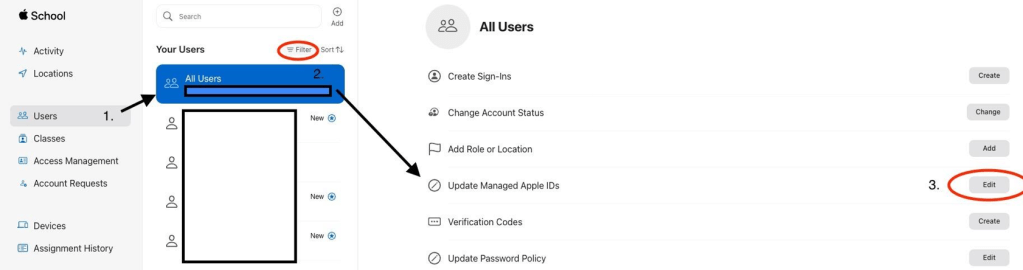
- Log in to your AxM instance with an admin account that allows you to edit user accounts and go to the Users tab.
- Select “All Users,” or consider using the Filter to help manually select only those users that you would like to check for PAAs (make sure you Cmd+Click or Shift+Click on more than one user to enable the bulk edit mode).
- Once you have your users selected, click on “Update Managed Apple IDs.”
- In the “Update Managed Apple IDs” pane, select {Email User Name (before “@”)} from the dropdown on the left as well as the respective domain you want to check by selecting it in the dropdown for “Choose Domain.” This will make sure that the MAA for your users will be identical to your user’s email address, which is ultimately what Federation will require as well as what will be in conflict with any PAAs that your users might have created. NB: This process does NOT federate your AxM domain – it is only changing the MAA that is on file in AxM for your user, which can be done at any time and with any desired format.

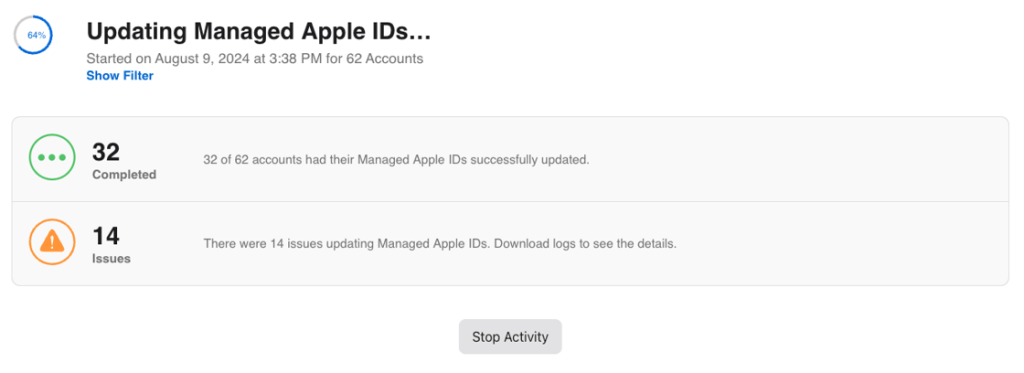
- Once you click “Continue,” Apple will then begin the process of updating the Managed Apple IDs of the users you selected. Depending upon the amount of users this can take upwards of an hour to complete. You can check the real time progress of this process by going to the Activity tab in the left pane of AxM.
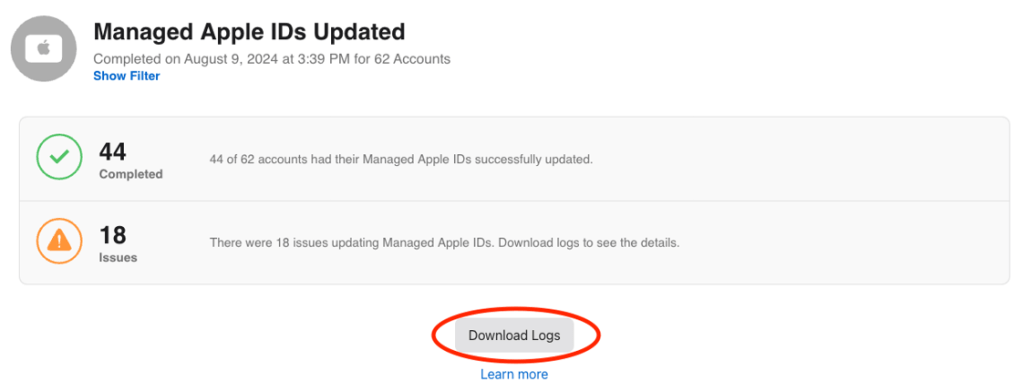
- When the process is complete, you can go to the Activity tab in AxM and download the CSV file that will report all of the Managed Apple IDs that were subject to the bulk update and what the end result is of that process.
- Whether or not a MAA is actually changed from whatever it was previously, it will say “Success, Updated” in the CSV file. For example, if you ran the bulk edit a second time with the exact same parameters such that it would not actually change the MAA, it will still mark those accounts as “Success, Updated” even if there was no actual change to them.
Any errors or issues are due to some other problem – for example, if the user does not have an email in AxM then it obviously will not be able to use the {Email User Name (before “@”)} attribute to create a MAA. For that reason it generates an Issue notice for that particular user account. Ultimately the way you find which accounts have a PAA is by parsing the CSV and finding any accounts that now show the {Email User Name (before “@”)}+1 form.
- The fastest way to find the list of likely PAAs is to upload the CSV generated in the Activity tab into your favor spreadsheet editor and use conditional formatting alongside filtering to find your list.
If you use Google Sheets, upload and open the CSV file found in the Activity tab for the accounts that you bulk updated. Select the column that contains the list of all of the MAAs that have your {Email User Name (before “@”)}@[yourdomain].com format, which should be column A, and select Format > Conditional Formatting. Create a new rule and set the format rules to be “Format cells if” and select “Text contains.” In the empty text box put “1@[yourdomain].com” for whatever domain you are checking and set a cell fill color to be one of your choosing. Once you hit done, your spreadsheet will show those accounts that have the +1 MAA format as highlighted with your chose fill color.
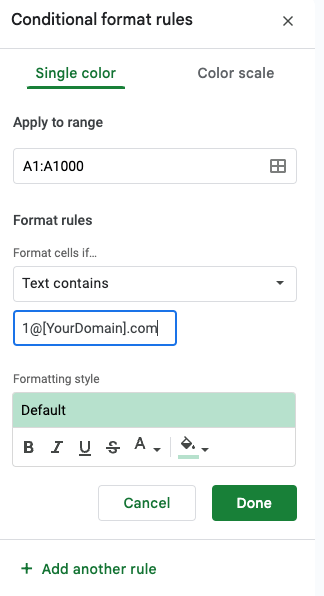
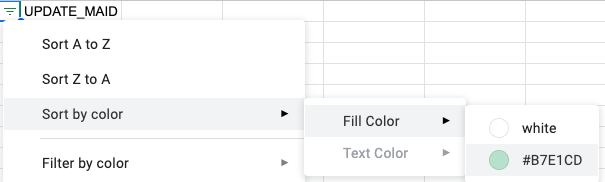
Having done that, you can narrow down your list by filtering out all of the non-conflicts. Once again select the column that has the list of all the MAAs and go to Data > Create a filter. In the top cell of that column there will be an upside down triangle icon made of three lines that you can click on. Select Sort by color > Fill color > and select the fill color you chose to highlight your MAAs. This will then hide all MAAs except the ones that are of the +1 format. You can then copy/paste that filtered list to have a handy set of leads for tracking down PAAs on your active domain.
Related Rambling Reflections
The relationship between an organization’s domain and Managed Apple Accounts
The important detail about this process that should be made clear is that it only works to find PAAs that would be in conflict with users that you actively have in your AxM directory. This process does not find every single PAA that may have ever been created using an email address from your organization’s domain, but it does help you find those PAAs that most people are concerned with, namely, PAAs that are being actively used by current members of your organization.
Given that you are bulk editing those accounts that were either created manually or automatically through the directory sync you set up under Preferences > Managed Apple IDs, confirming the list of users in your AxM directory is the first step. If you have PAAs that were created by individuals who are now no longer in your organization, and so not in AxM, or you have PAAs that were created by an email address in your domain that is not actively populated in AxM, then this process will not help track those down.
Relatedly, this process will only find PAAs that conflict directly with the MAA email address format that you use for the bulk edit. If your organization’s email address format has changed over time, such as if you went from being first name initial combined with full last name to full first and last name, or you changed domains, then this process will only find one of those that match the current {Email User Name (before “@”)}@[yourdomain].com format that you run with that bulk edit. In that case, you can use use different Apple ID formats other than the {Email User Name (before “@”)}, and in fact Apple gives you multiple variables you can select or combine as desired. That having been said, you can run the bulk edit more than once, using different user name and domain combinations, to find PAAs that may instead fit different past formats. In just a little bit I’ll address potential concerns related to what kind of impact you can expect for your users if you make multiple bulk edits to your AxM instance.
One other peculiarity to be aware of is that it is theoretically possible for a person to have more than one PAA associated with their organization email address. As it so happens, Apple treats a dot (.) in a username as a distinct address while Gmail, for example, treats an email with a dot (.) in it, wherever it might show up in the username, as one and the same email address. So, for example, appleuser@[yourdomain].com and apple.user@[yourdomain].com are treated by Apple as distinct and so both could be used to create a PAA, even though an email sent to either of those two addresses, when hosted by Google, would end up in the same mailbox. As a result, a user could theoretically make multiple PAAs that all would be accessibly by having access to the their single organization domain email. Now since the average user is not typically aware of this peculiarity, and Apple requiring a unique phone number when creating a new Apple ID further discourages a typical person from going this route, you are unlikely to run into this situation. The thing to remember is that the process that has been detailed here will only find one MAA email address format at a time so you will have to decide how important it is for one to find these variable PAAs on one’s domain.
For those worried about bulk updating their entire AxM instance.
If you are nervous because you don’t know if this really works, the easiest way to test it yourself is to find two Apple IDs, one that you know has a PAA and one that you know does not, and update just those two IDs to having the {Email User Name (before “@”)} format by triggering the bulk edit option seen in steps 1-3 above. You could do this by creating three test accounts for this (one PAA that uses an email address of your domain created at https://appleid.apple.com/, and then two MAAs created in your AxM instance, one that will conflict with that PAA and one that you will not have a conflict). After initially discovering this process, I confirmed its functioning by finding two MAAs that were not actively being used, one that I knew had a conflict and one that I knew did not, and doing the bulk edit update. More precisely, I first changed the two of them to have a completely different format that than the {Email User Name (before “@”)}, specifically I went with {First Name (first 2 letters)}{Last Name}. Once they were changed to that format, I then changed them to the {Email User Name (before “@”)} format and confirmed the 1 was once again added to the MAA that had a conflicting PAA.
If you are nervous because you are worried that doing a bulk edit will affect your users, know that if your user’s Managed Apple ID is not actually changed by the bulk edit – such as if the MAA was already in the format you were bulk changing them to – then nothing will occur in any end-user interface. They will remain logged in to any devices that they were previously logged into and nothing in those accounts will change.
If the Managed Apple ID username is changed, know that the account itself is not changed in any way and no data associated with that account is deleted or otherwise altered. The one disruption that would be seen by end users is if they are logged into a device and have iMessange or Facetime enabled for their MAA as the change in the format of their username requires their accepting permission to add the new username to their account.
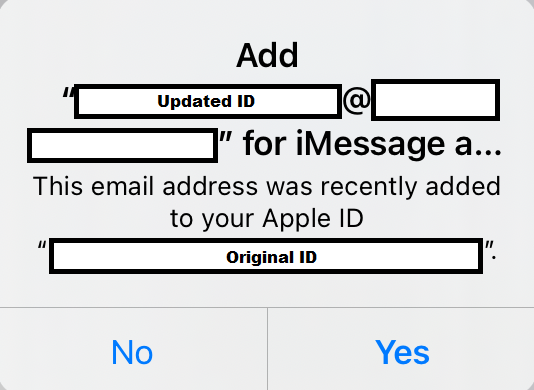
If the user selects “Yes,” then when they next send a iMessage or make a Facetime call, it will display their new username as a separate identity (so as the recipient you will see the messages as from separate users). If the user selects no, then it will log that user out of iMessage, etc., and any attempt to send a new message will error. Upon testing, I found that under Settings > iMessage it will inform you that you are logged out of iMessage and need to log in. When I tried to log in with the updated ID, I would not be able to do so successfully and it required fully logging out of the Apple ID and then back in again to get those services working. Furthermore, I found that even if you changed the ID and then quickly changed it back again, this prompt would still show up in the user interface. Additionally, a user would only be shown this prompt a single time even if you changed the ID, changed it back to the original, and then changed it again a second time to the same altered username. Logging fully out of the Apple ID, on the other hand, seemed to completely reset this process of prompting the user to allow the updated ID to be associated with their MAA.
While that is unquestionably a kind of disruption to your end user, do know that the process of federation will ultimately set your Managed Apple ID format to {Email User Name (before “@”)} due to the fact that it will be using your IDPs email as the MAA username. The degree of impact ultimately depends upon the current format that your AxM instance has for your Apple accounts as well as whether or not MAAs are currently in use in your organization. In my case, as it so happened our Managed Apple ID usernames were not of the format {Email User Name (before “@”)}. What is more, we had not implemented MAAs in our organization so I knew there were no active MAA end-users other than test accounts that I would disrupt, and knowing that the federation process would ultimately set the Managed Apple ID format to {Email User Name (before “@”)}, I felt comfortable initiating the bulk edit..
The AxM design process and how to preserve the privacy of individuals
Although Apple wants to preserve the privacy of individuals who have PAAs, when it decided to give organizations the power to create Managed Apple IDs through AxM instances, it had to deal with the fact that there could (in the majority of cases, absolutely would) be already existing PAAs that would conflict with what MAAs could be created by that organization.
If Apple tried to obscure which MAA had the conflict with a PAA by going the route of erroring the entire process of bulk creating/bulk editing Managed Apple IDs, it would make its entire system unusable as it would mean creating an error in a core feature of the service that also provided no details on how to resolve the issue. Given how common this occurrence would be, and how you could attempt multiple configurations in an attempt to narrow down the occurrence of the error all without being given any specifics as to why it was erroring, it would give the impression of an entirely unusable system. Add on the fact that you could ostensibly still narrow down which MAAs had conflicting PAAs by simply bulk editing just two IDs at a time to try to suss out the conflict, and one can see how erroring out the entire process is unable to satisfy the desire for preserving privacy in light of the power to create MAAs by AxM instances.
Similarly, if Apple went the route of allowing the bulk creation/bulk editing process to proceed but instead returned an error for just those accounts that had a conflict, it would be no different than the currently existing system as in that case you would just look for accounts that returned errors rather than have the +1 format. When one realizes that it would also still create a usability issue – certain accounts just would not be created at all if they were being generated for the first time – and you can see why the current state of the +1 format is the most tenable option.
In the end, once Apple gave organizations the ability to create MAAs for their domains, the only route it could take to preserve the privacy of already existing PAAs was to withhold any documentation related to this process while also stating to inquiring end users that generating a list of MAA-PAA conflicts was not possible (which is technically true since the process detailed here is only an indirect way of generating a list). Said another way, the best one could do is attempt to preserve privacy by obfuscating the process, rather than actually preventing that private information being discerned. Of course, it is an entirely separate question as to whether the concern with privacy in the case of already existing PAAs on an organization’s registered domain is a coherent one, but that is beyond the scope of things here.
 Layers of Abstraction
Leave a comment